How to Go Live on X (Twitter): Phone, Encoder & Pro Setup
Step-by-step guide to going live on X from your phone or a streaming encoder, what you can edit after the stream, moderation tips and a pre-live checklist.
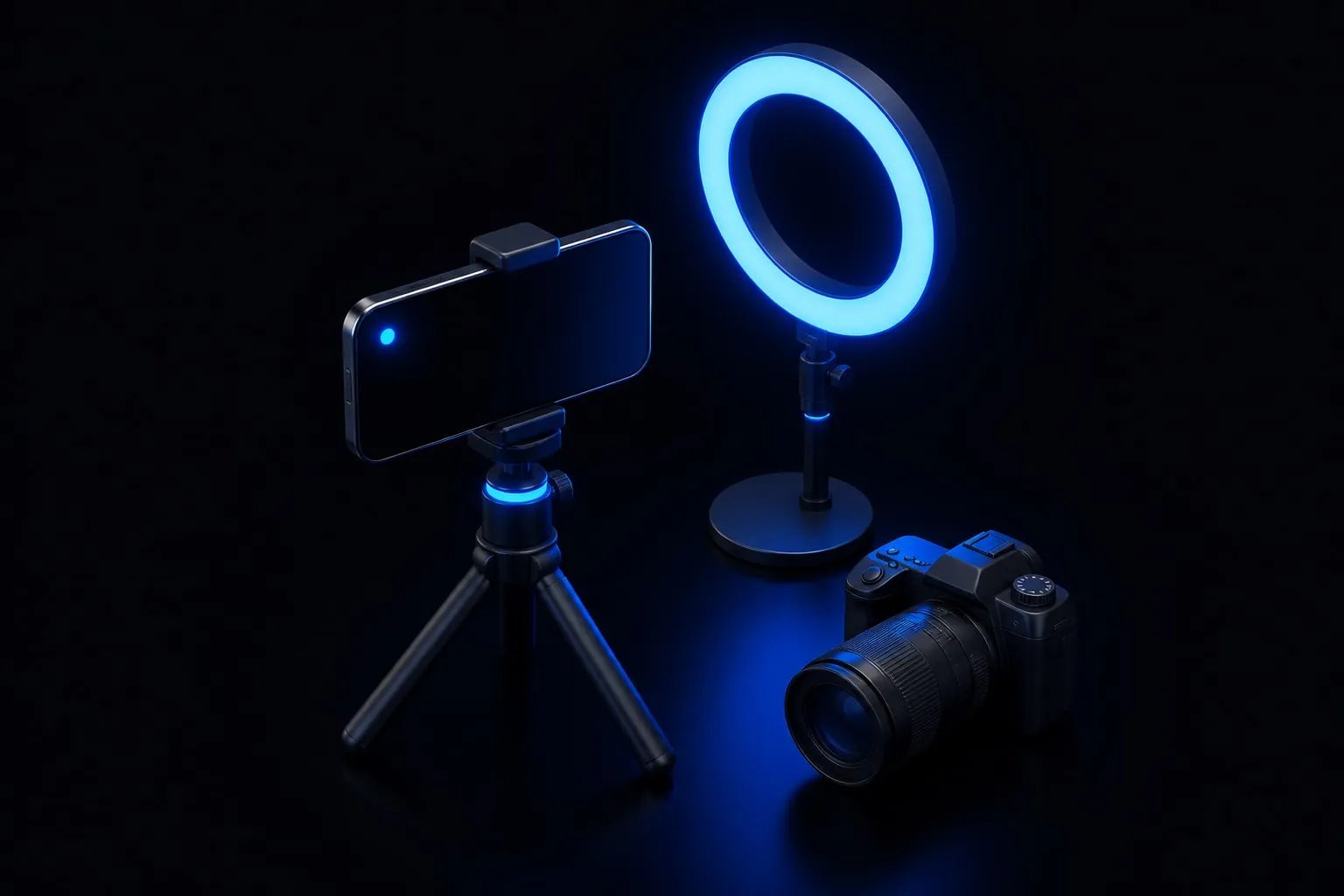
Going live on X takes about ten seconds from your phone: open the composer, tap Live, add a short description and tap Go live. Your broadcast shows up as a post in your followers’ timelines and on your profile, and viewers can comment, send hearts and share it while you’re on air. For higher production value, you can stream from desktop encoder software or from X’s own professional tool, Live Studio.
The harder part is everything around that button: picking the right setup, keeping the chat under control, and making the replay useful after you end. This guide walks through all three methods, what happens after the stream, and a checklist to run before every broadcast.
Before you start: who can go live
Three things decide whether the Live option works for you:
- Your account must be public. According to X’s help center, protected accounts can’t go live. If your posts are protected, you’ll need to change that before streaming.
- The app needs camera and microphone access. If you denied these permissions when you installed X, the Live screen may open black or silent. Fix it in your phone’s system settings, not inside X.
- Your app should be up to date. Live features change over time, and an old version is the usual reason a menu doesn’t match what a guide describes.
Option 1: How to go live on X from your phone
This is the fastest route and the one most creators use for Q&As, behind-the-scenes clips and reacting to news as it happens.
- Open the composer. Tap the + (Post) button.
- Tap Live. You’ll switch from the text composer to the camera view.
- Add a description. It’s optional, but write one. This text is what people see in the timeline, so it does the job a headline would. “Unboxing the new lens + your questions” beats “live!”.
- Add a location if it helps. Also optional. Useful for events, venues and local businesses; skip it if you’re streaming from home.
- Tap Go live. The broadcast starts and a post goes out to your timeline and profile.
- End the stream when you’re done. You’ll get the post-stream options described below.
Phone streams are forgiving but not magic. Hold the phone steady (a small tripod helps a lot), face a window or a light, and stay close to the mic. Viewers tolerate a plain background; they leave quickly over bad audio.
Option 2: Stream with an encoder (Custom Streaming Server)
If you want overlays, multiple cameras, screen sharing or a proper microphone, use desktop encoder software instead of your phone. X supports this through a Custom Streaming Server option in compatible encoders:
- Open your encoder’s streaming or destination settings.
- Choose the Custom Streaming Server option.
- Select X as the destination.
- Authenticate with your X account when prompted.
- Set up your scenes, run a short test, then start streaming.
This route suits gaming, tutorials with screen capture, podcasts filmed with several cameras, and anything where you want branded lower-thirds. It also takes the load off your phone battery and lets you monitor audio levels properly.
Option 3: Live Studio for professional streams
For teams and publishers, X offers Live Studio (also known as Media Studio Producer). It’s built for RTMP sources, the standard protocol broadcast hardware and professional software use, and it supports scheduling a broadcast in advance. That makes it the right choice for events, product launches and recurring shows where you want the stream set up before anyone goes on air.
Availability of professional tools can depend on your account, so check what your Media Studio shows before you build a launch plan around it.
Which method should you use?
| Method | Best for | Setup effort | Scheduling |
|---|---|---|---|
| Phone (composer > Live) | Q&As, quick updates, events on the go | Minimal | No, go live on the spot |
| Encoder (Custom Streaming Server) | Gaming, tutorials, multi-camera shows | Medium | Depends on your encoder |
| Live Studio / Media Studio Producer | Brands, publishers, launches | Higher | Yes |
If you’re new to streaming, start on your phone. Move to an encoder once you know what your audience comes back for.
What viewers can do during your stream
Knowing the viewer’s side helps you run a better show:
- Comment. Chat runs alongside the video, and it’s where most of the interaction happens.
- Send hearts. On mobile, viewers tap the screen to send hearts. It’s a low-effort signal that people are still with you.
- Share Live. Viewers can share the broadcast as it happens.
- Share from a specific moment. The Share from… option lets someone share the video starting at a particular point, which is how good moments travel.
- Find it later. Live videos are searchable and can be embedded, so a strong broadcast keeps working after you end.
Moderating your live chat
An open chat on a public stream will eventually attract someone who wants to derail it. Plan for that before you go live:
- Block when needed. According to X’s help center, blocking someone stops them from watching your live video and from commenting. Don’t debate trolls on air; block and move on.
- Recruit a moderator. For anything bigger than a casual chat, have a trusted person watch the comments on a second device and flag problems, or handle blocks while you focus on the camera.
- Set expectations in the description. One line such as “Questions welcome, spam gets blocked” sets the tone.
- Don’t read everything aloud. Pick the comments that move the conversation forward; ignore bait.
- Report serious abuse. Harassment or threats should be reported through X’s normal reporting tools, not just blocked.
What happens after you end the stream
Ending the broadcast isn’t the end of the video. The live post stays on your profile, and on iOS and Android you get several tools to make the replay more useful:
| After-stream option | What it does | Limits from X’s help center |
|---|---|---|
| Edit title | Rename the replay so it describes what happened | Up to 3 times |
| Edit thumbnail | Pick a frame that shows the best moment | Edits can take up to 15 minutes to appear |
| Custom start point | Skip the “can you hear me?” minutes at the start | Edits can take up to 15 minutes to appear |
| Save to camera roll | Keep a copy on your phone | Offered at the end of the broadcast |
Two habits pay off here. First, always set a custom start point so replay viewers land on the actual content. Second, save the recording so you can cut short clips from it. Short native clips are how most people will discover a stream they missed. Our guide to the best video length and format for X covers how to prepare those clips.
Pre-live checklist
Run through this before every broadcast. It takes five minutes and prevents most of the problems that make viewers leave.
| Check | Why it matters |
|---|---|
| Account is public | Protected accounts can’t go live |
| App updated, camera and mic permissions on | Prevents a black or silent stream |
| Stable Wi-Fi or strong signal | Buffering loses viewers faster than anything else |
| Phone charged or plugged in, notifications silenced | Streams drain batteries; pop-ups interrupt |
| Description written in advance | It’s your headline in the timeline |
| Light facing you, background tidy | Viewers decide in seconds whether to stay |
| Moderator briefed (for public or larger streams) | Someone else handles blocks and spam |
| Announcement post published ahead | Gives followers a reason to show up |
| Plan for the first 60 seconds | Late arrivals need something to join, not dead air |
| Plan for after the stream | Title, thumbnail, start point, clips |
If people report they can’t see your stream, send them to our fixes for when an X video is not playing. Audio-only might suit the show better, too: hosting an X Space is often easier for talk-heavy sessions.
Getting viewers into a new stream
The hardest stream is the first one. Organic promotion should always come first: announce ahead, ask followers to turn on live notifications from the bell on your profile, and post at a time your audience is online. We cover the full playbook in how to get more live stream viewers on X.
Some creators also use live viewer services, including OnlyTwitter’s live stream viewer service, so a launch stream doesn’t open to an empty room. Be clear-eyed about it: paid viewers raise the public number, but they aren’t an audience. They won’t ask questions, buy anything or come back next week. X’s platform manipulation policy also prohibits artificially inflating engagement, so weigh the risk to your account before using any service.
Key takeaways
- From your phone, go live with composer > Live > description (and optional location) > Go live.
- Use an encoder via Custom Streaming Server for multi-camera or screen-share shows, and Live Studio / Media Studio Producer for RTMP and scheduled broadcasts.
- Protected accounts can’t go live; blocking someone stops them watching and commenting.
- After the stream, edit the title (up to 3 times), thumbnail and start point, and save a copy to turn into clips.
- A five-minute checklist prevents most dead streams.
Frequently asked questions
How do I go live on X from my phone?
Open the post composer, tap Live, add an optional description and location, then tap Go live. The broadcast appears as a post in your followers' timelines and on your profile.
Can I stream to X with OBS or another encoder?
Yes. X supports third-party encoders through a Custom Streaming Server option: you select X in the encoder and authenticate your account. For professional RTMP setups and scheduled broadcasts, X offers Live Studio (Media Studio Producer).
Why can't I go live on X?
The most common reason is a protected account. X doesn't allow protected accounts to go live, so you'd need to make your posts public first. An outdated app or missing camera and microphone permissions can also block the option.
Can I edit my live video after it ends?
On iOS and Android you can edit the title, thumbnail and custom start point after the broadcast ends. Titles can be edited up to 3 times, and edits can take up to 15 minutes to appear.
Can I stop someone from watching my live stream?
Yes. Blocking an account stops that person from watching your live video and from commenting on it.